How To Allowlist Your Emails From 1440
Many email newsletters will often end up in the "spam" or "promotions" folders. Unfortunately, it's up to your email provider to determine what folders your emails end up being received in.
But allowlisting can help. So, in order to avoid unnecessary hassles add this email to your address book: DailyDigest@email.join1440.com
The process for allowlisting our email address can differ depending on your email provider. Below are instructions for each email provider:
Apple Mail
On iPhone/iPad (iOS 18.2+):
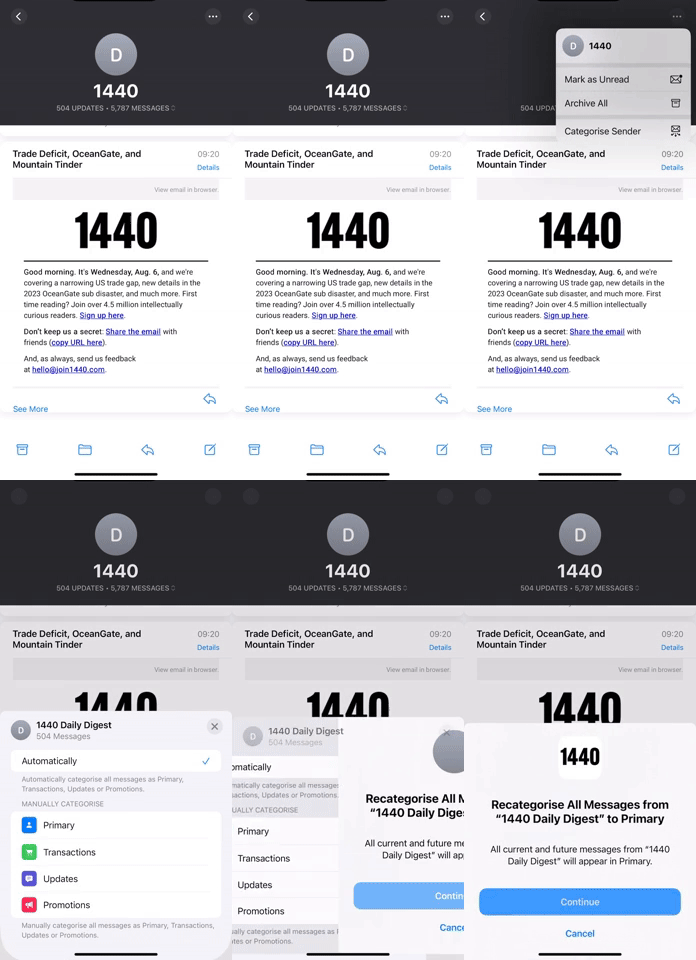
On Mac (macOS Sequoia 15.4+):
- Open any 1440 email.
- Hover over our sender name ("1440 Daily Digest") and click the little drop-down arrow on the right.
- Move your mouse over "Categorize Sender."
- Select "Primary."
- In the pop-up window that appears, select "Continue."
You can also add us to your Contacts or "Add as VIP."
On iPhone/iPad, once you've opened a 1440 email, click on our sender name and select "Add to VIP."
On Mac, follow the same steps as listed above. However, instead of hovering over "Categorize Sender," click "Add to VIPs."
Gmail
Log into your account and find our latest email in your inbox. It may be in one of Gmail's Tabs, such as "Updates" or "Promotions". If you do find it in any tab other than Primary, hit the star icon and then drag the email to Primary.
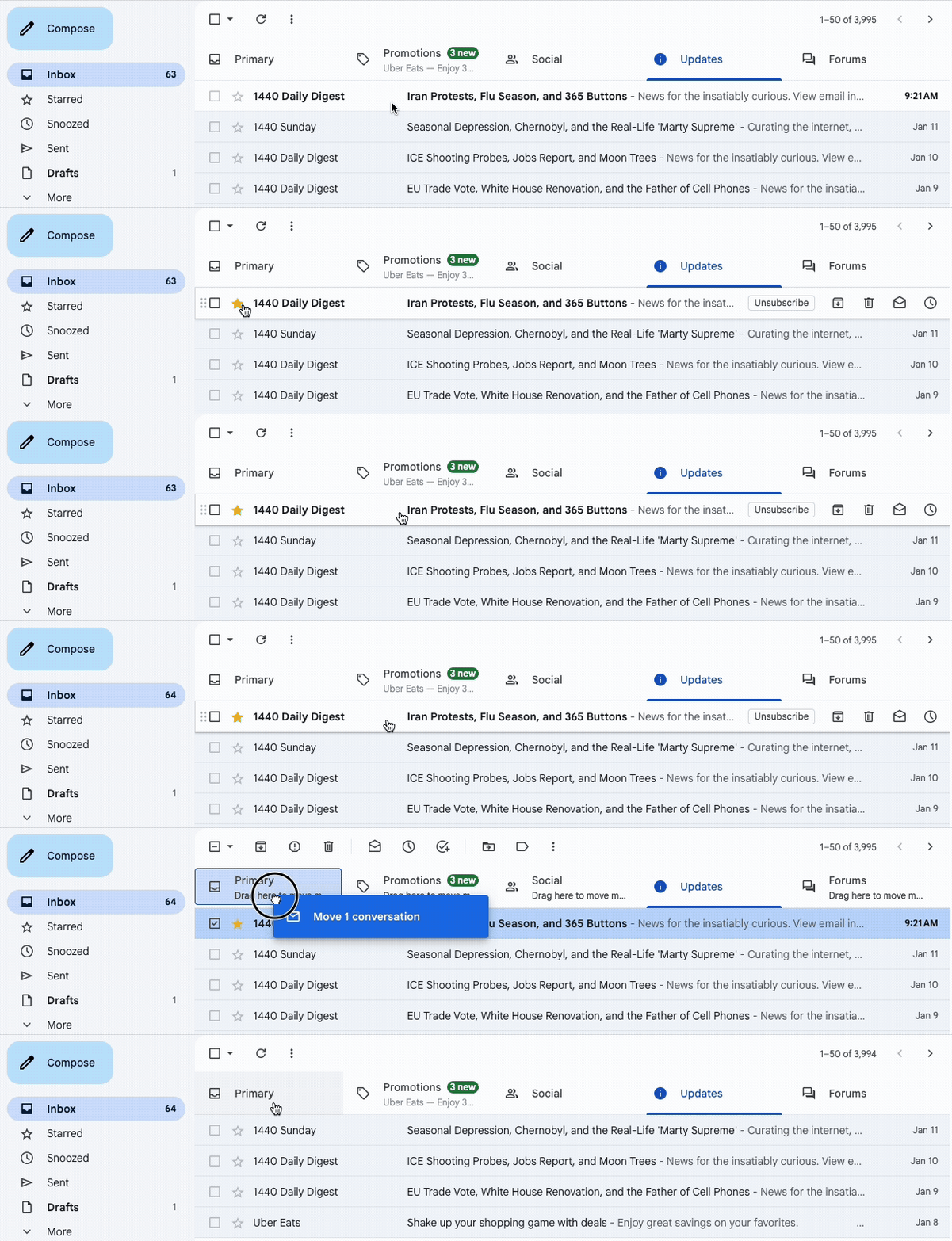
On Mobile and not in Primary? Press and hold our most recent email until the email is selected. Then press the three dots at the top right of the menu bar and select "Move To." Then select "Primary".
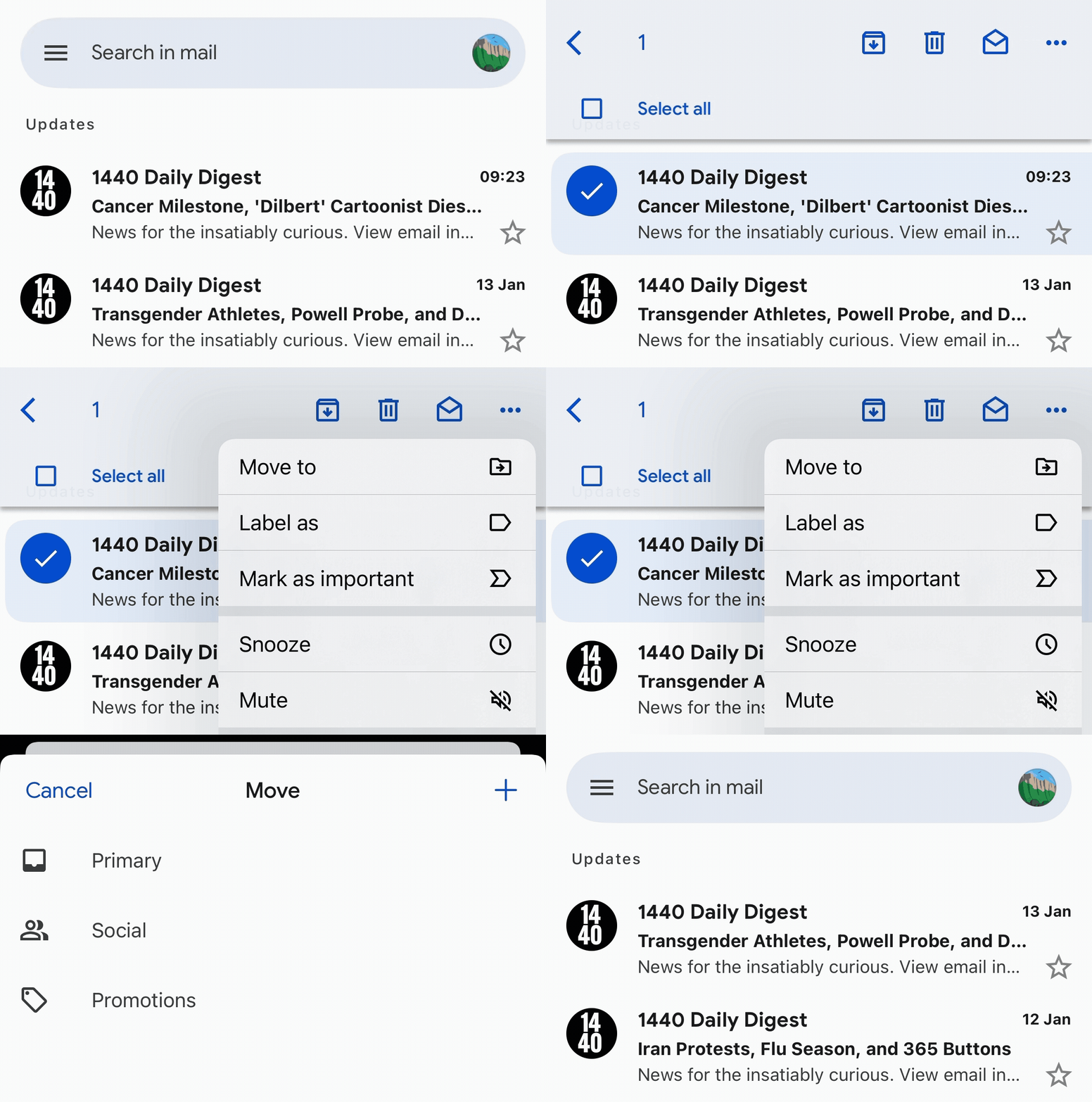
Adding our sender email to your contacts will also ensure we make it into your inbox.
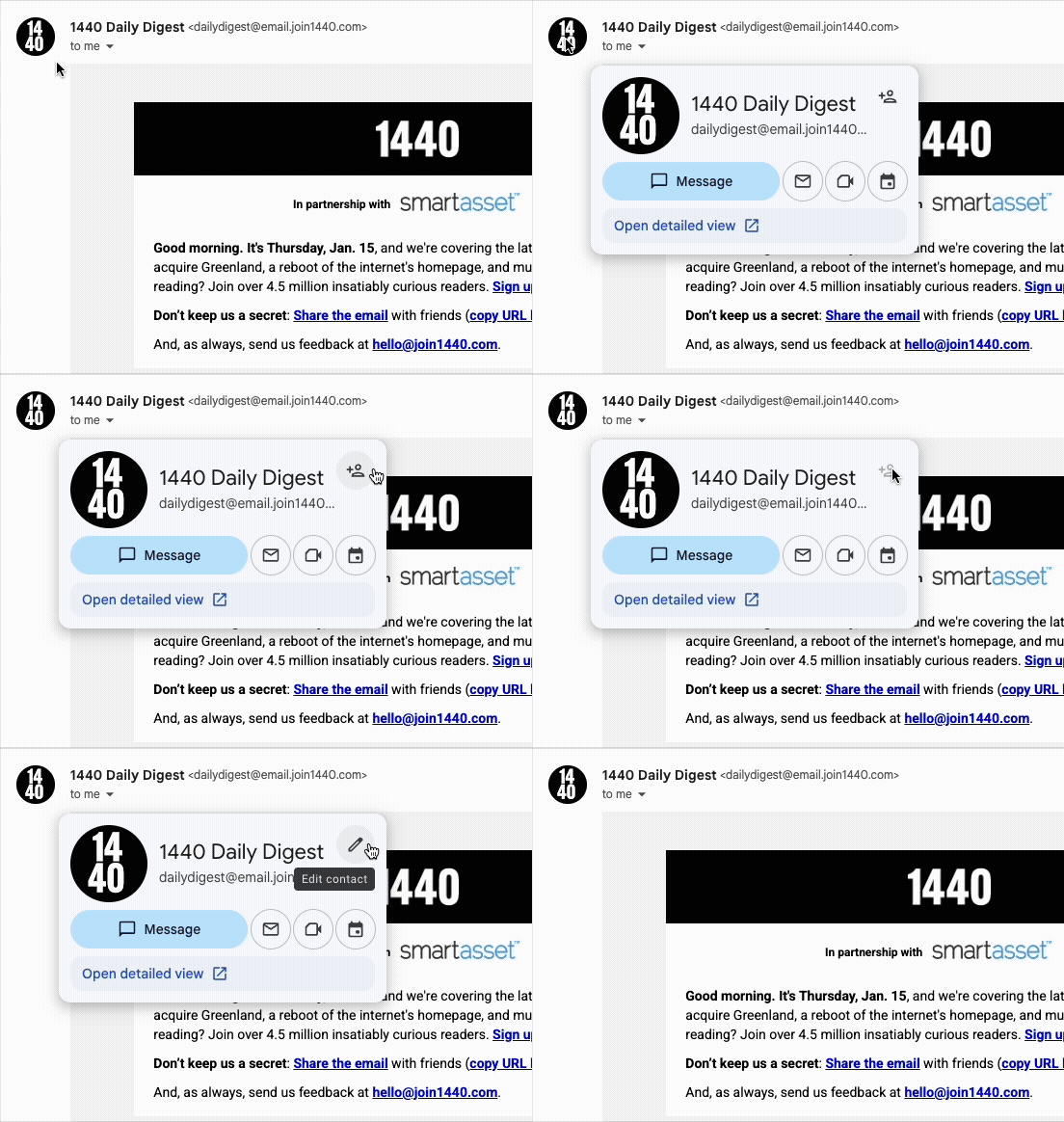
On Desktop:
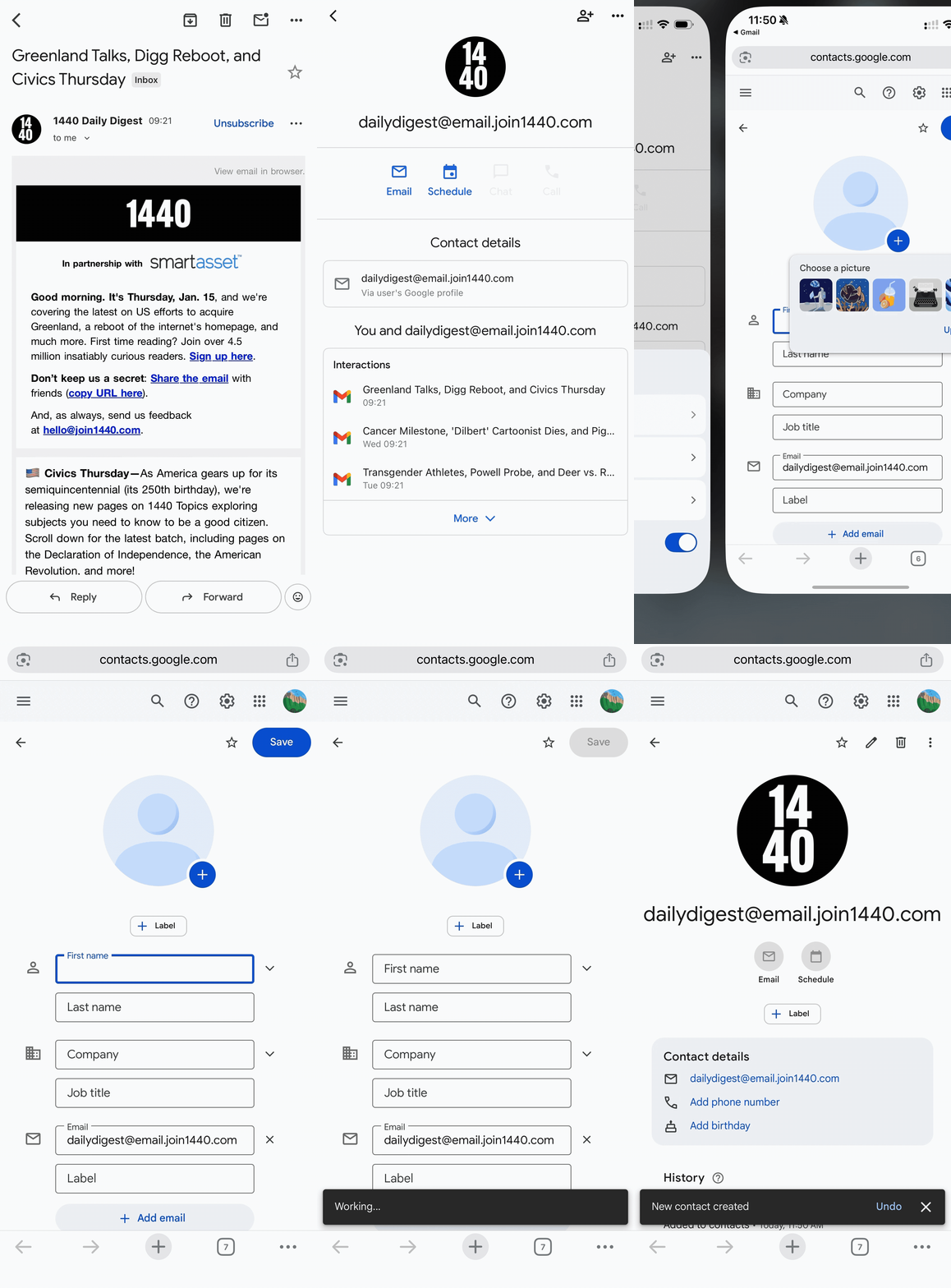
- Open the latest 1440 email you've received
- Hover over the 1440 logo at the top right, by the sender name
- In the window that appears, press the + icon at the top right
- That's it!
On Mobile:
- Open the latest 1440 email you've received.
- Press and hold on the 1440 logo at the top right, by the sender name.
- In the new page that appears, press the + icon next to the three dots at the top right.
- It will prompt you to open your browser, select your browser of choice.
- Once the page loads in your browser, press "Save".
- When Gmail finishes saving, you'll see our logo show up, and you're done!
Yahoo!
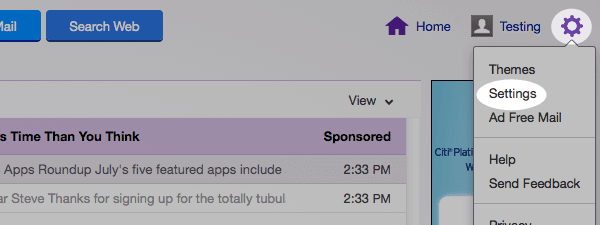
Log into your account, hover over the "Settings" icon and click "Settings".
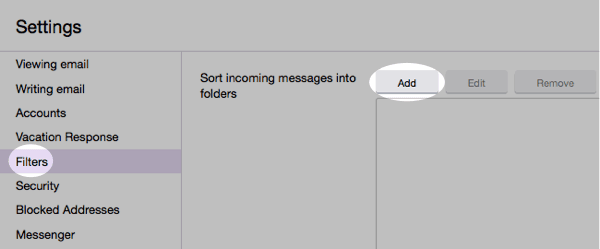
In the "Settings" tab, select "Filters" from the left menu and click the button to "Add" a filter.
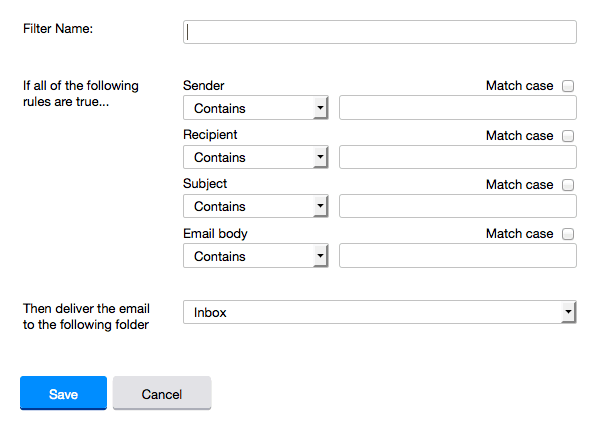
Type a name for your filter in the "Filter name" field. Select "contains" in the "sender" drop-down menu. Type the sender's email address in the "sender" text field. In the "Move to Folder" drop-down menu, select "Inbox". Click the "Save" button in the top bar to save the filter.
Hotmail
In the upper right hand corner of your account, click on the "Settings" icon. From here, click on the option for "Options".
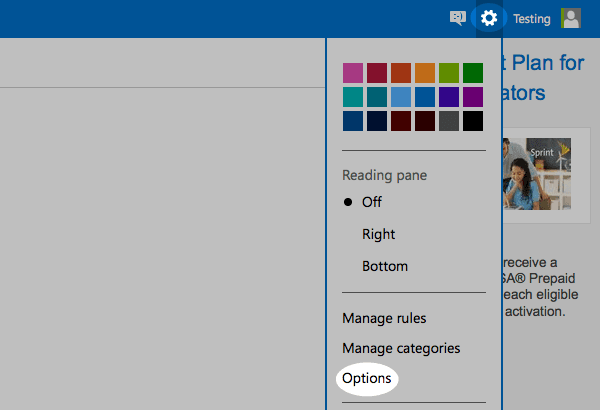
While in this section, click on the option for "Safe and blocked senders".
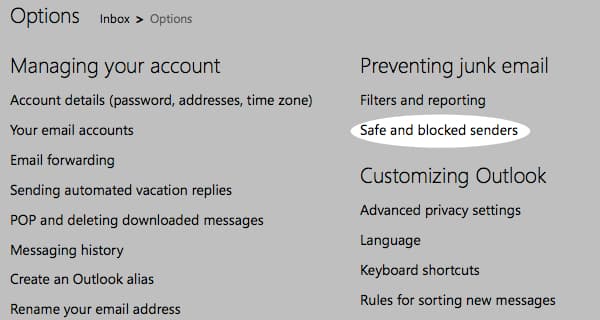
Click on "Safe senders".
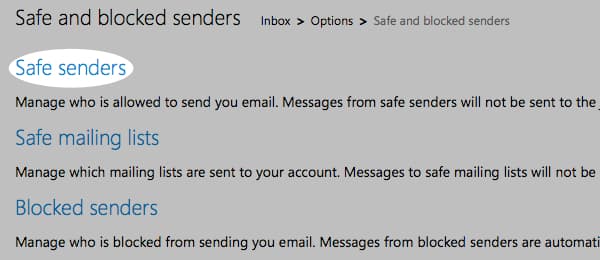
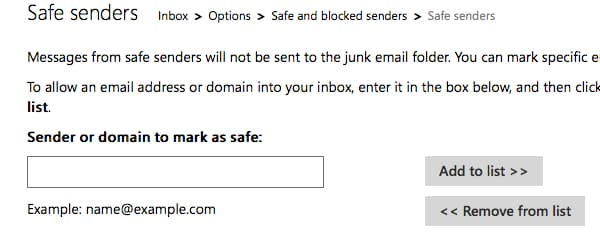
Enter in the sender's email address and click the button to "Add to list".
AOL
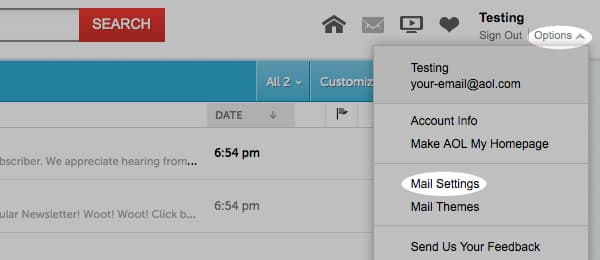
In the upper right hand corner of your account, click on "Options". From there, click "Mail Settings".
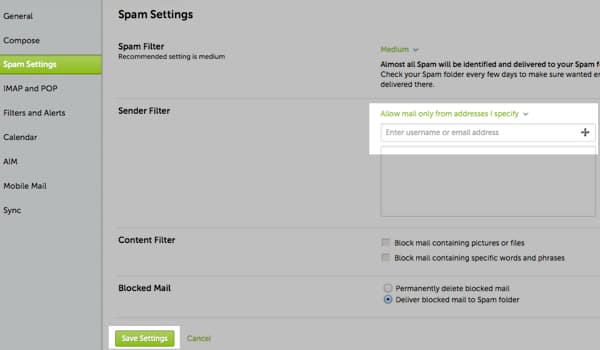
On the "Settings" page, click "Spam Settings". From there, choose "Allow mail only from addresses I specify" on the drop-down menu. Enter in the sender's email address, click the plus button, and click save to save your changes.
Outlook 2003 (And Higher)
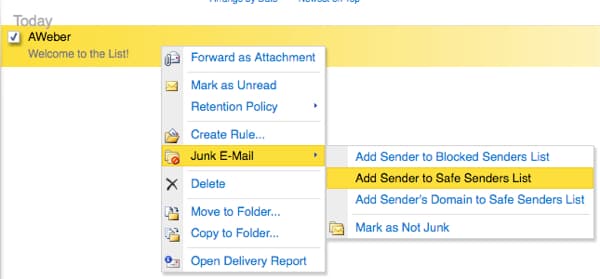
Right-click on the message in your inbox. Select "Junk E-mail" from the menu. Then, click "Add Sender to Safe Senders List".
Verizon
- Open your email.
- Click "Options".
- Click "Block Senders".
- Locate the "Safe List".
- Enter your contact's domain.
- Click "OK".
Comcast
- Click "Address Book".
- Click "New" and click "New Contact".
- Add the sender's email address.
- Click "Save".
Cox.Net
- Open your email.
- Click "Preferences".
- Under "General Email Preferences", click "Blocked Senders".
- Type in the sender's email address in the "Exceptions List".
- Click "Add".
- Click "Save".
Road Runner
- Click your "Junk Mail" folder.
- Select the email that includes the email address you would like to add as a safe sender.
- Click "Mark as Not Spam".
AT&T WebMail
- Select "Options".
- Select "Filters".
- Click "Add Filter".
- In the top row labeled From Header, select "contains" from the drop down menu.
- Enter the sender's email address.
- Move down to the bottom where there is the option "Move the message to". Select "Inbox" from the drop down menu.
- Select the "Add Filter" button again.
EarthLink
- Click "Add"
- Enter your sender's domain i.e. example.com.
- Click "Save".
Thunderbird
- Check if your sender's email is in your "Junk" folder. Then, right click on the email and select "Mark As Not Junk".
- Click "Address Book".
- Make sure that the "Personal Address Book" is highlighted.
- Click "New Card", the "New Card" window will display.
- Under the "Contact" tab, copy your sender's "From" address and paste it into the email dialog box.
- Click "Ok".
Windstream
- Click the "Settings" tab.
- Click "Messages".
- Click "Allow and Block Messages".
- Select "Advanced Block Senders".
- In the "Allowed Senders and Domains" area, type the sender's email address you want to allow.
- Click "Ok".
MSN
- Select "Settings".
- From the email settings screen, select "Junk E-mail Guard".
- Select "Safe List".
- Enter the sender's email address.
- Select "Add".
Norton AntiSpam
- Start Norton AntiSpam.
- Select "Status & Settings" tab.
- Select "Configure" button.
- Select "Allowed List" tab.
- Select "Add".
- Enter the sender's email address.
- Select "Ok".
McAfee
- Click the "Allow/Deny" menu option in the Control Console.
- Enter the sender's email address in the "Add Entrys" field in the "Allow List".
- Click "Save".
Entourage
- Open the email.
- Right click the sender's email address.
- Select "Add to Address Book".
- Verify the sender's contact details.
- Click "Save".
Mail.Com
- Open the email.
- Click the "Plus" symbol on the sender's email address.
- Add the first/last name of the sender.
- Click "Ok".
GMX
- Open the email.
- Click the "Plus" symbol on the sender's email address.
- Add the first/last name of the sender.
- Click "Ok".